

Enhance your footage with the Dark Forest Premiere Pro LUT. Download these essential cinematic presets to achieve professional, moody color grading for nature.
AI Summary: The Dark Forest Premiere Pro LUT is a professional-grade color grading tool designed to create moody, cinematic aesthetics for outdoor and lifestyle footage. By applying these high-quality 3D Look-Up Tables (LUTs), editors can instantly achieve atmospheric, film-like results. This guide provides step-by-step installation instructions, technical Lumetri scope tips, and optimization strategies for high-end video production.
Table of Contents
The Dark Forest Premiere Pro LUT is an essential asset for creators looking to transform standard footage into a professional, moody masterpiece with just a few clicks. Whether you are a travel blogger or a cinematic filmmaker, these LUTs provide a cohesive look that emphasizes deep greens, rich shadows, and atmospheric light.
What is the Dark Forest Premiere Pro LUT?

The Dark Forest Premiere Pro LUT is a professional Look-Up Table designed to remap the colors and tones of your video footage to achieve a specific cinematic aesthetic. These presets act as a sophisticated starting point for color grading, allowing you to bypass hours of manual adjustments while maintaining a high-quality, filmic output.
Using these LUTs highlights the warmth of golden hour and the cool, deep tones of forest environments. They are specifically optimized for nature photography, sunrise sequences, and outdoor lifestyle content where color depth and “mood” are paramount.
How do you install LUTs in Premiere Pro?
Installing the Dark Forest Premiere Pro LUT requires placing the .cube files into the specific directory where Adobe Premiere Pro can access them through the Lumetri Color panel. This ensures that the presets appear automatically in your creative dropdown menu every time you edit.
Follow these technical steps for a seamless installation:
- Download and extract the zip file containing the cinematic .cube files.
- Navigate to your Premiere Pro installation folder (usually under Program Files/Adobe).
- Locate the
/Lumetri/LUTs/Creative/directory. - Paste the extracted files into the Creative folder.
- Restart Premiere Pro and find your new LUTs under the Creative tab in the Lumetri Color panel.
Windows and macOS Compatibility
The Dark Forest Premiere Pro LUT is fully cross-platform, meaning it works identically on both Windows and macOS systems. Since .cube files are the industry standard for color data, you can also utilize these presets in other professional software such as DaVinci Resolve or Final Cut Pro for a consistent workflow across different editing environments.
How to use Lumetri Scopes with the Dark Forest LUT?
To achieve the best results with a Dark Forest Premiere Pro LUT, you must first analyze your footage using technical Lumetri Scopes to ensure the signal remains within legal broadcasting limits. Proper scope reading prevents “clipping” in the blacks or “blowing out” the highlights, which is vital for maintaining professional image integrity.
Start by enabling your Waveform (RGB) and Parade (RGB) scopes. Before applying the LUT, adjust your basic exposure and white balance based on the histogram. Once the LUT is applied, use the “Intensity” slider to blend the look, then re-adjust your shadows and mid-tones to find the perfect balance for your specific lighting conditions.
Mastering the Vectorscope YUV
The Vectorscope YUV is your primary tool for monitoring color saturation and skin tone accuracy when using moody presets. When applying the Dark Forest Premiere Pro LUT, keep an eye on the “skin tone line” to ensure that while the forest environment becomes moody and desaturated, the human subjects in your video remain looking natural and vibrant.
Why is the Dark Forest aesthetic ideal for nature photography?
The Dark Forest aesthetic is ideal because it enhances the organic textures of wood, leaves, and earth while muting distracting bright colors. This creates a focused, “fine art” feel that is highly popular among Instagram travel bloggers and professional outdoor filmmakers.
- Golden Hour Enhancement: These presets pull out the amber and gold tones in sunlight.
- Atmospheric Depth: They add a slight “misty” or “cool” wash to the shadows.
- Texture Definition: The LUTs are designed to increase the perceived sharpness of natural elements like bark and foliage.
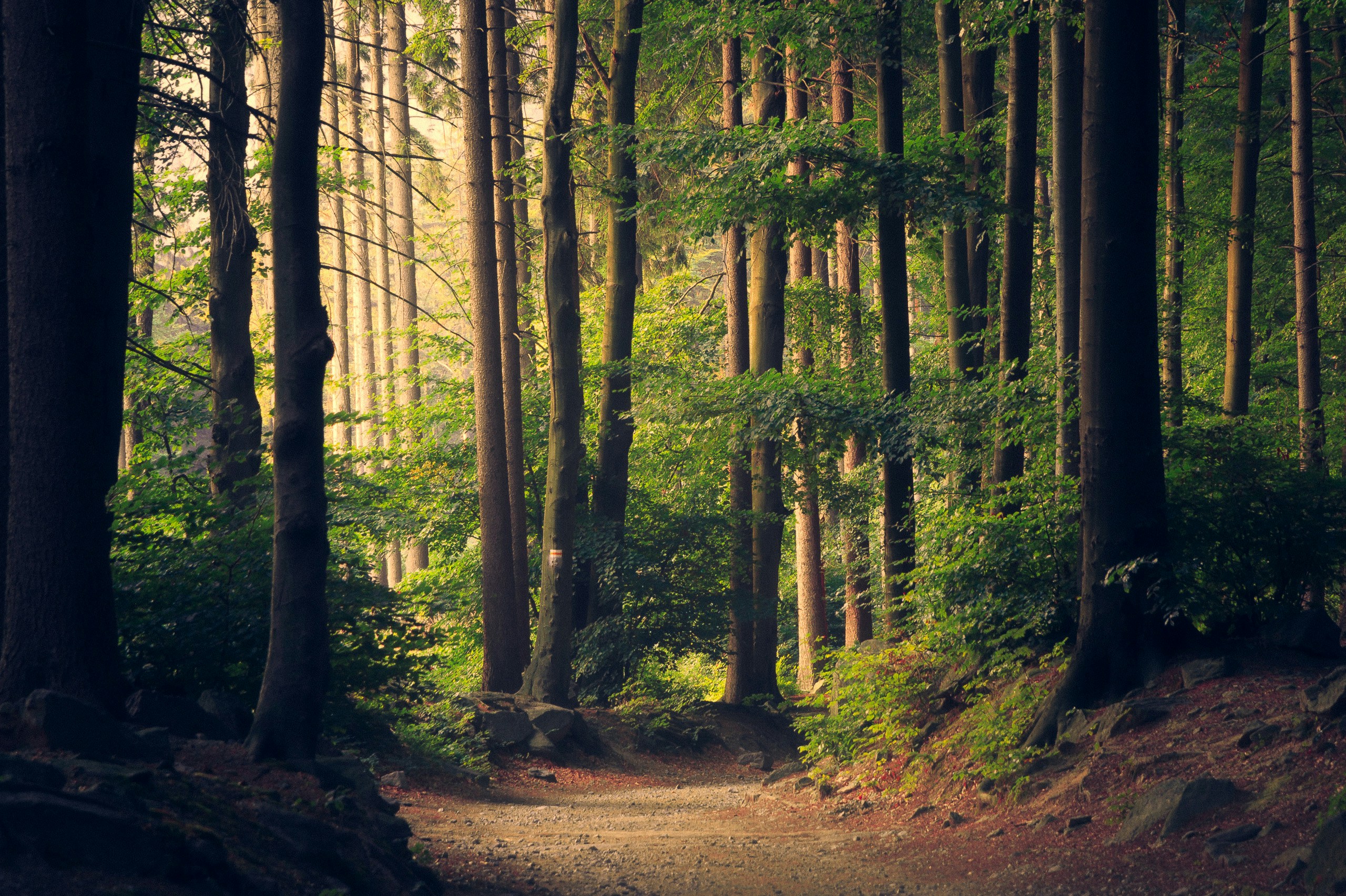
Alt-Text: A misty woodland scene optimized with the Dark Forest Premiere Pro LUT for a cinematic look.
What are the best settings for outdoor cinematic footage?
The best settings for outdoor cinematic footage involve shooting in a “Flat” or “Log” profile to maximize dynamic range before applying the Dark Forest Premiere Pro LUT. Shooting in high-bitrate formats allows the LUT to manipulate color data without introducing “banding” or digital artifacts.
Expert Insight: “Always apply your LUT on an Adjustment Layer rather than directly on the clip. This allows you to toggle the effect on and off and adjust the opacity of the entire grade without affecting your primary color corrections.” — Adobe Creative Cloud Documentation
Professional Color Grading Workflow
- Primary Correction: Fix white balance, exposure, and contrast.
- Creative Grade: Apply the Dark Forest Premiere Pro LUT via an Adjustment Layer.
- Secondary Refinement: Use masks to brighten faces or specific areas of the forest.
- Final Polish: Add a slight grain or vignette to complete the filmic look.
Final Thoughts
The Dark Forest Premiere Pro LUT is a powerful tool for any editor looking to elevate their nature and lifestyle videos. By combining these professional presets with a technical understanding of Lumetri Scopes and a proper color grading workflow, you can achieve a high-end, cinematic aesthetic that resonates with your audience. Remember that a LUT is a creative guide; always fine-tune your settings to match the unique lighting of your specific footage for the most authentic and stunning results.
